Menu and Tool Navigation
Open the side menu to move between Arbitrage, Positive EV, and the other tools included with your account.

LPArbVantage visual walkthrough
This guide walks through the arbitrage screen like a game tutorial. We’ll start with every major button, then show how the wallet system calculates the other side of a bet for you.
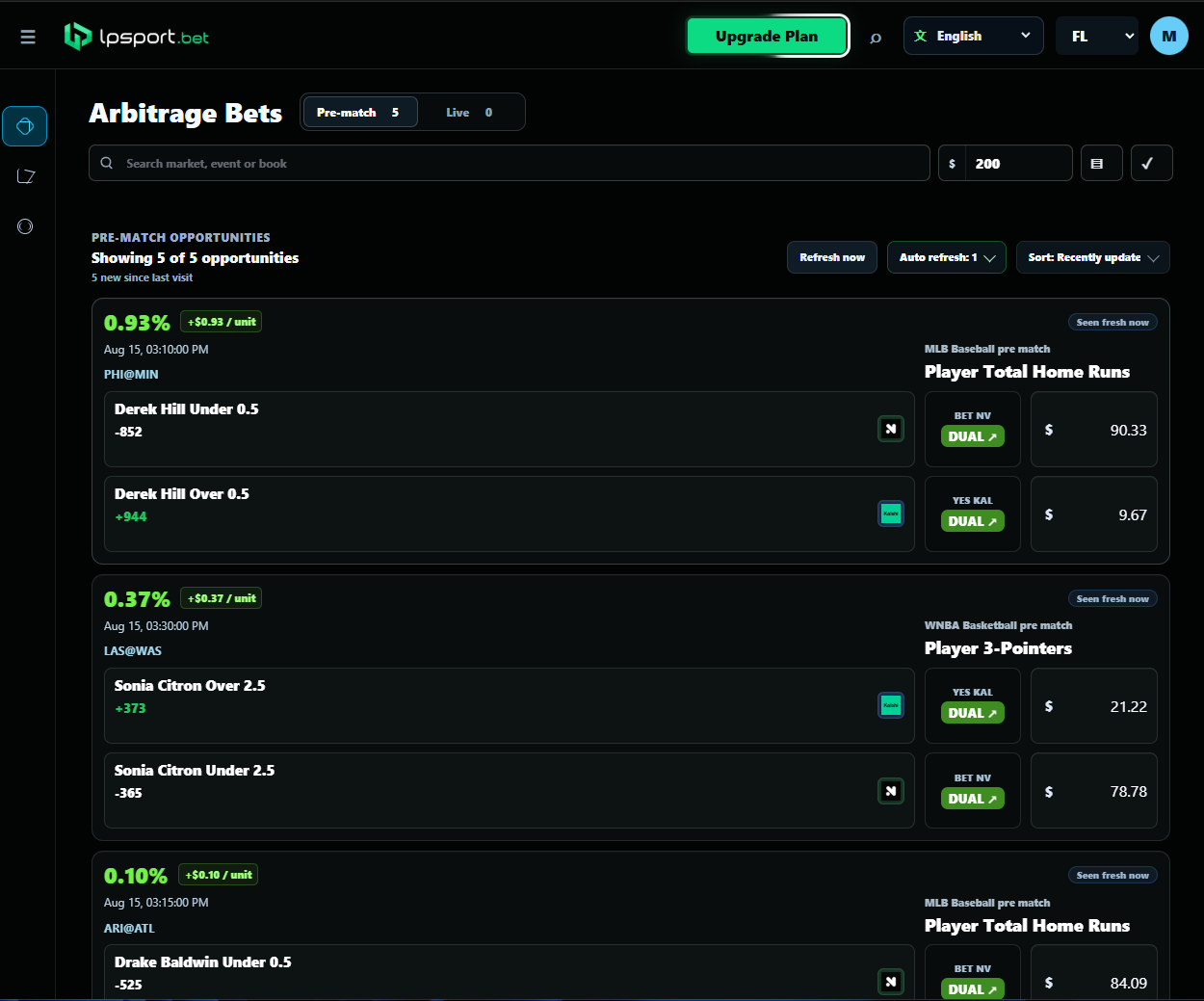
This is the first screen you see after logging in. The numbered markers match the explanations below, so you can learn the page one control at a time.
Important: The numbered buttons are clickable and take you directly to their information.
Open the side menu to move between Arbitrage, Positive EV, and the other tools included with your account.
Refresh Now checks immediately. Auto-refresh repeats the check at the interval you choose so you can keep watching for updated opportunities.
Pre-match shows opportunities before an event begins. Live shows supported opportunities that appear while games are being played. The number tells you how many are available.
Change the order of opportunities. Sorting can help you see the newest updates or the strongest available percentages first.
Use the long search box to narrow results by market, event, player, or sportsbook. Enter the total amount you want to use in the dollar box beside it.
Each card shows the estimated arbitrage percentage, event time, matchup, market, both outcomes, sportsbook, and current odds. Confirm every detail at the sportsbooks before betting.
Open Wallets to enter the money available in each app. Press the checkmark Save button after changing your wallets or dashboard preferences.
These boxes show the suggested amount for each side. Together, the two amounts equal the wallet total you entered.
The wallet is a planning tool—it does not hold your money or place bets. It tells the calculator how much you want to use across both sides of an opportunity.
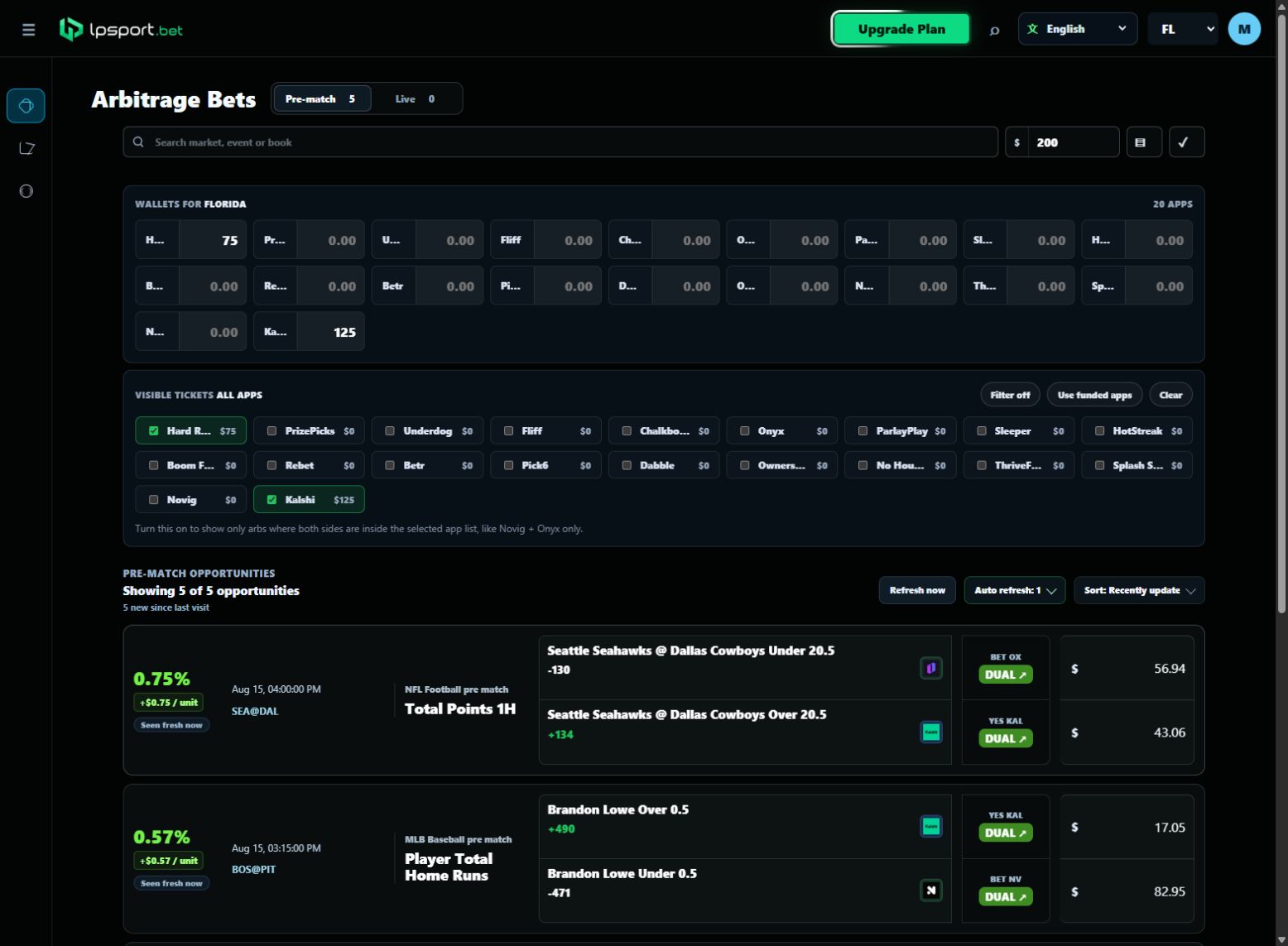
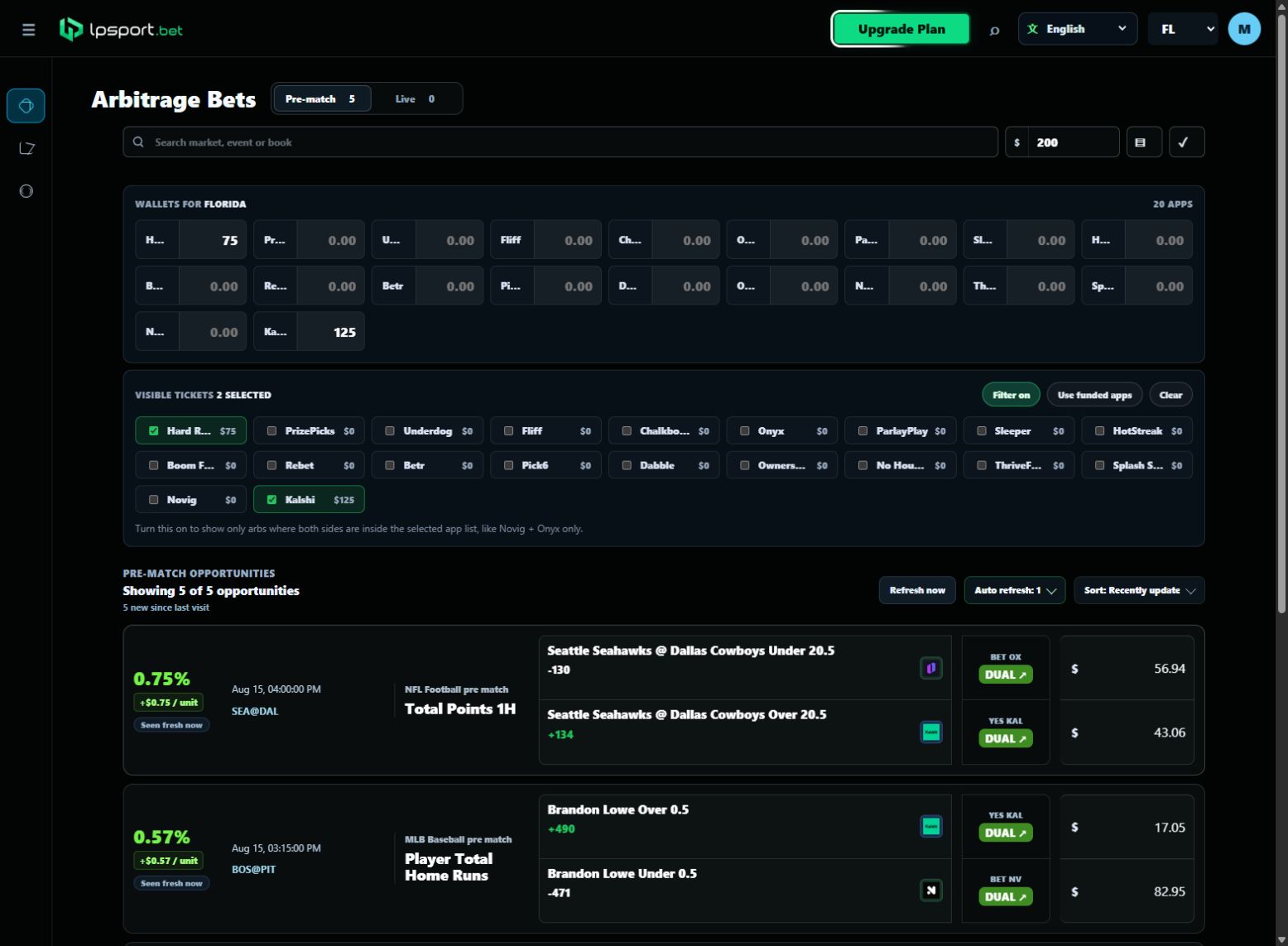
Press the Wallets button beside the main dollar amount. The site displays every app available for the state selected in the top-right corner.
Type your available balance beside each app you use. If you only use Hard Rock Bet and Kalshi, enter those two balances and leave every other app at $0.
Press “Use funded apps.” Hard Rock Bet and Kalshi will be selected automatically because they are the only funded wallets. Turn “Filter on” to hide opportunities requiring other apps.
Press Save beside the Wallets button. Your balances, funded-app filter, stake mode, and other dashboard preferences will be remembered for your next visit.
When an opportunity uses your selected apps, type the amount you want on either wager. LPArbVantage recalculates the matching amount on the opposite side using the current odds.
Exact cents gives the closest mathematical split. Whole dollars creates simpler amounts that are easier to enter and verify, which is the option we recommend.